Publication records and academic incentives in YÖKSİS
Add missing publications to YÖKSİS, or go straight to the academic incentive report and dossier if your records are up to date.
Are your YÖKSİS records up to date? If the publications and citations for your application are complete and accurate, skip the ORCID, BibTeX and publication entry steps.
Go straight to the incentive stepsAdd missing publicationsAcademicFix Editorial Team · Sources checked
On this page
Prepare your ORCID profile
Copy your ORCID iD
Open your ORCID record. Copy the 16-character iD or the full https://orcid.org/… profile link. The last character can be X. AcademicFix accepts either the iD or the link.
Add any missing publications in Works
Open Works → Add in ORCID. Use Add work with a DOI for one publication with a DOI. To add multiple works, choose a service under Import works from other services. For an item without a DOI, such as a book chapter, use Add work manually.
Check which publications you want to export
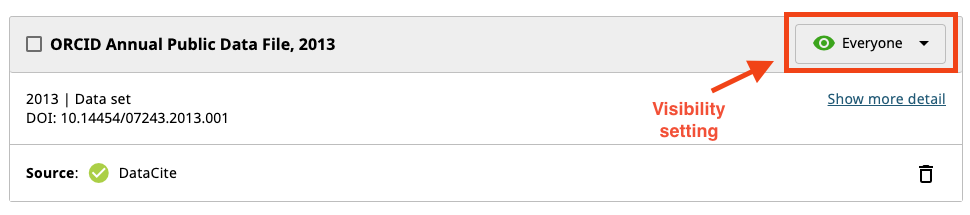
AcademicFix reads records marked Everyone in ORCID. Adjust visibility only for works you want to make public. Check Preview public version to see whether those works appear in your public record.
Prepare your BibTeX file
This step is optional if you want a BibTeX file from your ORCID records. DOI lookup and manual entry in YÖKSİS work without a .bib file.
Fetch your ORCID publications
Open ORCID to BibTeX for YÖKSİS in the dossier builder. Paste your iD or profile link and choose Fetch publications.

Filter and select the records to export
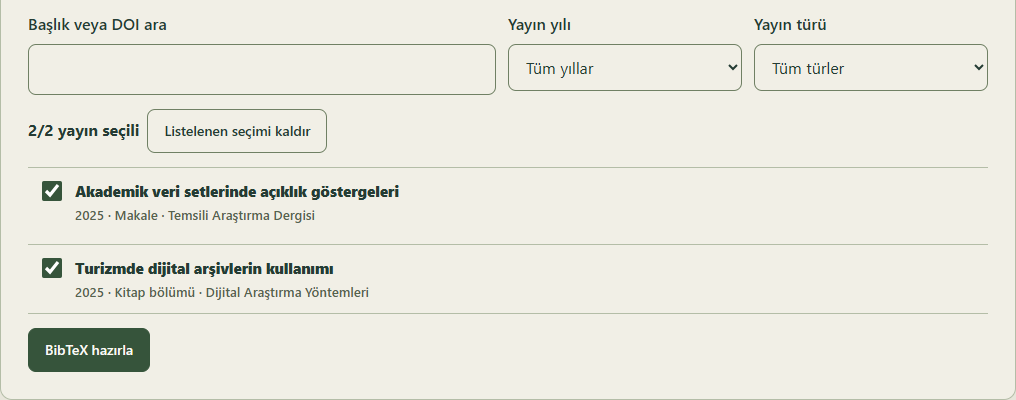
Search by title or DOI and narrow the list by year or publication type. Use Select only listed to export just the visible group. Review the checkboxes and selected count, then choose Prepare BibTeX.
Fill gaps and download the .bib file
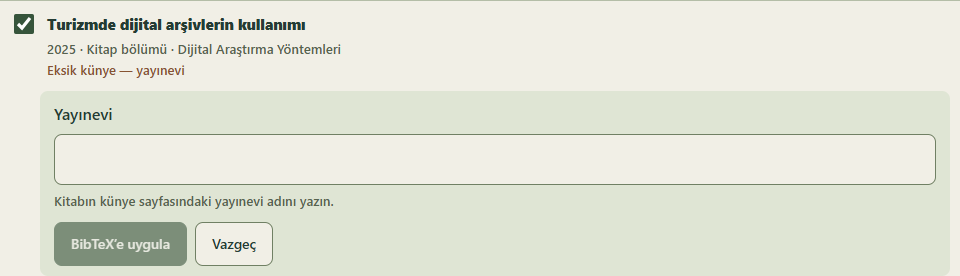
If the tool flags gaps, choose Show missing fields, then Fill missing fields on the relevant publication. For a missing publisher, copy its name from the book imprint and apply the change to the BibTeX entry.
Choose Download BibTeX (.bib) to get yoksis-orcid-yayinlar.bib. On a phone, check Downloads in the Files app if the notification has gone away. You can use the file with reference managers that accept BibTeX.

Add missing publications to YÖKSİS
The signed-in YÖKSİS CV screens checked on 14 November 2026 showed no .bib upload option for articles, books, conference papers or editorships. An older Council announcement mentions BibTeX. Council announcement
- Sign in to YÖKSİS and follow Personel İşlemleri → Özgeçmiş İşlemleri → Özgeçmiş Oluşturma (Yeni).
- Open Yayınlar → Makale and check Otomatik Bulunan for articles found automatically. For a missing article, open Yeni Ekle, enter the identifier beginning with
10.in the DOI field and choose the magnifying glass. The Web Servisler menu lists Web of Science, TR Dizin, PubMed and Elsevier. - For a book, chapter, conference paper or editorship, choose the publication type under Yayınlar and open Yeni Ekle. For a book chapter, use Kitap → Katkı Düzeyi → Bölüm(ler). Review the publication checklist and verify the saved record in the list.
Review publication details before saving
- All records: Compare the title, year, publication type and author order with the publisher’s record. If the DOI or work is already listed, review that entry before adding another.
- Article: Verify the journal title, ISSN, volume, issue and pages or article number. Check preprints and published versions against their own records.
- Book or chapter: Check the book title, ISBN, publisher and contribution type. For a chapter, enter the chapter title and full book title in their respective fields.
- Conference paper: Check the event name, dates, presentation type and publication details against the event documentation.
Show article, book and conference forms
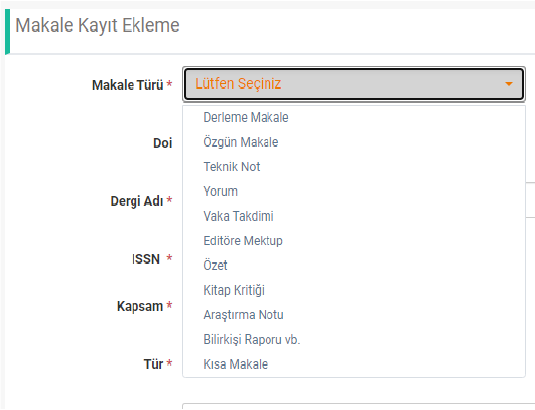
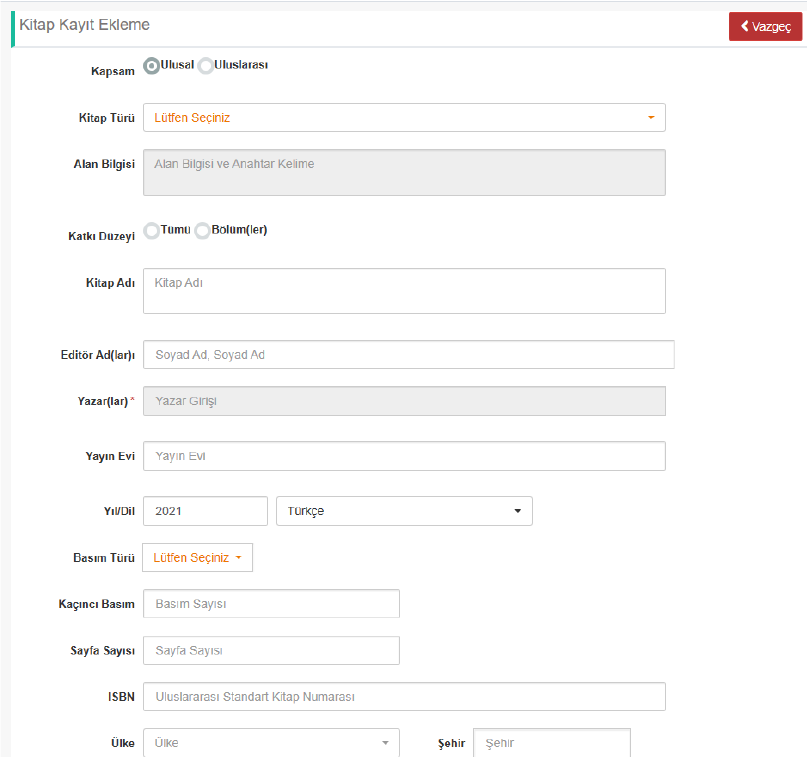
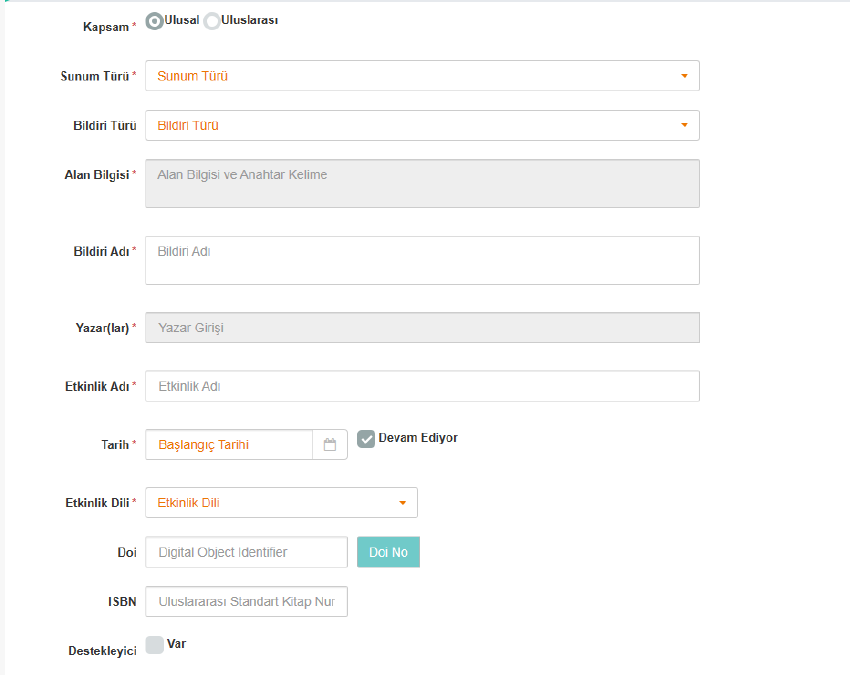
Troubleshoot publication entry
I cannot find the BibTeX option
The CV screens checked did not show a BibTeX field. Look up the article by DOI or use the relevant publication form.
The DOI lookup found no record
Copy the DOI from the publisher and remove the https://doi.org/ prefix. If the lookup still finds no record, fill in the article details manually in the same form.
The import left missing or incorrect fields
Open the entry and fill the affected fields from the publisher page or book imprint. For a DOI lookup, enter the DOI itself, beginning with 10.
A saved publication is missing from the incentive list
Check the activity year, type, publication details and author record. Select the relevant category in the active period’s Activity Declaration List and read any explanation provided by the system.
Get the academic incentive report
Open the application and check your profile
When the applicable period opens, go to Akademik Teşvik Başvurusu. Review details such as your academic field and appointment. If the check flags a missing item, complete it in your CV and return to the application.
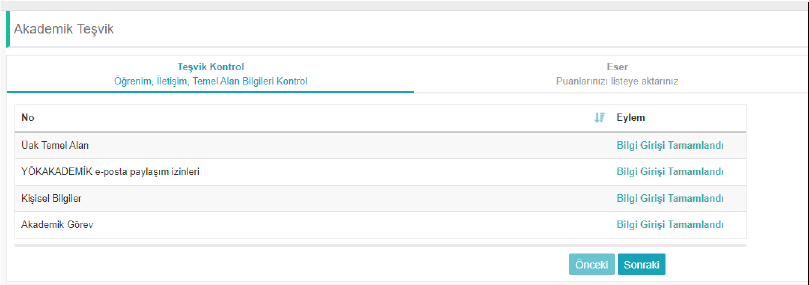
Add publications and citations to the declaration
Open the Yayın (publications) and Atıf (citations) categories separately. Compare the work IDs for the relevant period, add each applicable entry and verify it in the declaration list. If the system shows no score, check the explanation for that row.

Download the academic incentive report as a PDF
Generate or update the report at the output step. Use the download icon for the relevant period to get the PDF. Open it and check the period and the work IDs of your declared publications and citations.
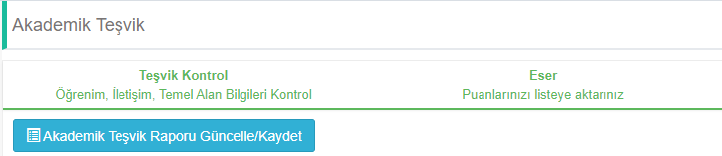
Article 6 requires the YÖKSİS output and supporting evidence under your institution’s published procedure. Academic Incentive Allowance Regulation
For example, prepare a publishing agreement or invitation letter for a book chapter alongside its ISBN and publication details. Check your institution’s period guide for evidence and submission requirements. Regulation, Article 7(4) · KLÜ period guides
Build your incentive dossier
Add the YÖKSİS PDF and evidence folders
In Add your documents, use Choose files for a ZIP or RAR archive or Choose folder for extracted files. If the report is not selected automatically, choose your PDF under YÖKSİS application export.
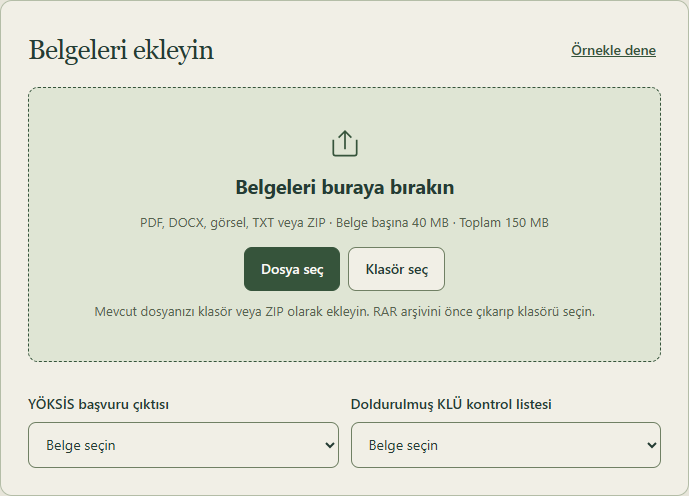
Review work matches and citation subfolders
Keep publication evidence under 3-YAYIN and citation evidence under 7-ATIF. In each category, use a work folder such as 1-EserNo-M-12345. The same ID can occur in both categories. Use separate subfolders for evidence from each citing work.
Under Review activities, open a record and check Documents matched from folders. Review any blank subtype against the evidence. Use Fill evidence gaps to check which requirements each document satisfies.
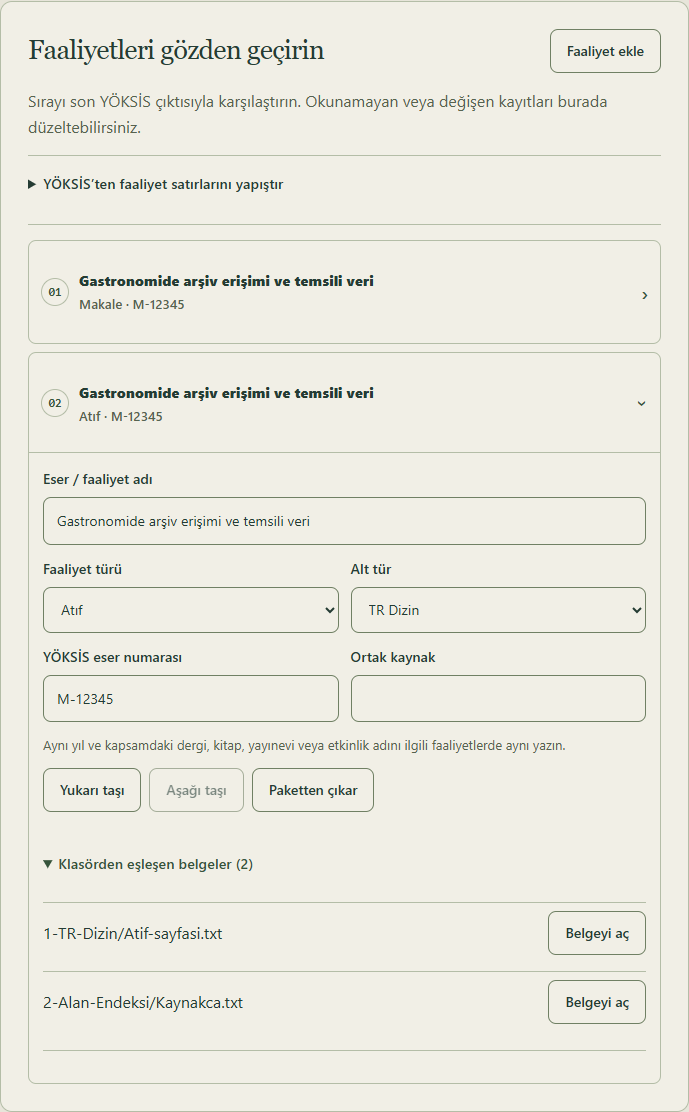
Open the ZIP and verify the contents before submission
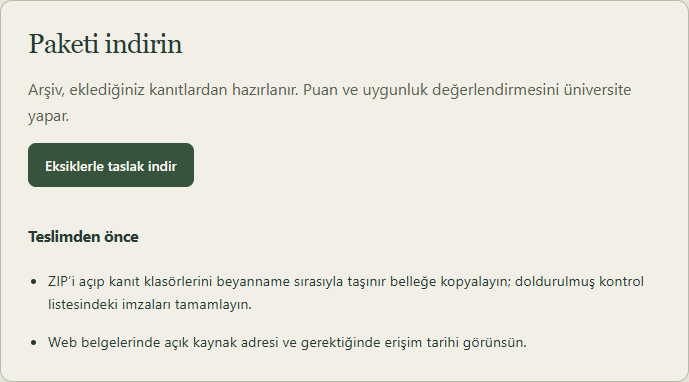
Download the ZIP from Download the package. If any checks are outstanding, the button says Download draft with gaps. Open the archive to check the YÖKSİS PDF, publication folders and citation subfolders. Confirm the submission method in your institution’s announcement for the period.